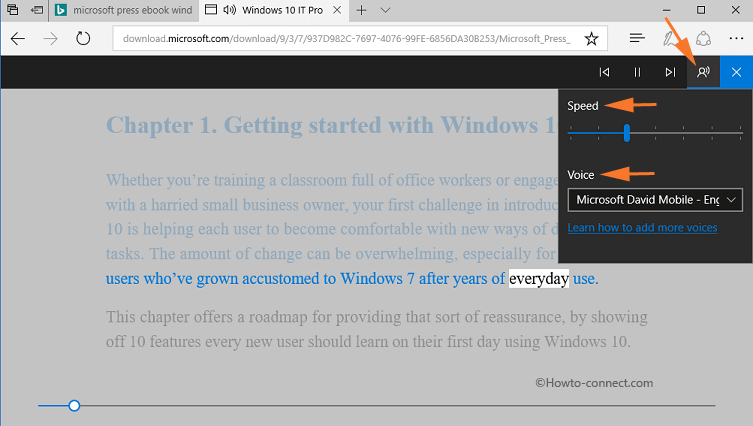
Imagine this: You've settled in, perhaps with a hot cup of coffee, ready for Microsoft Edge to transform your digital reading experience into an effortless listening session. You navigate to your desired article, eager to hit the "Read Aloud" button and let Edge do the work, freeing you to multitask or simply relax. But then, frustration strikes. You click 'Play', once, twice, yet nothing happens. The text refuses to play. You're left with the disheartening scenario where Edge won't play not read the content you've selected.
This experience, where the Microsoft Edge Read Aloud play button becomes unresponsive, is surprisingly common and incredibly annoying. It disrupts productivity, accessibility, and the simple enjoyment of browsing. If you've encountered this silent treatment from your browser, you're not alone. The good news is that this isn't usually a sign of a major catastrophe, but rather a hiccup that can often be resolved with straightforward troubleshooting. We'll guide you through a comprehensive set of solutions, from quick fixes to deeper dives, to get your Edge Read Aloud feature back in working order, transforming your browser from silent to spoken.
Understanding Why Edge Read Aloud Won't Play
Before we dive into the fixes, it’s helpful to understand the potential culprits behind why your Edge Read Aloud feature might fail to play. Knowing the cause can sometimes point you directly to the solution. Here are some of the most common reasons:
- Temporary Glitches: Software, especially browsers that handle complex tasks, can sometimes experience minor, transient bugs. A simple restart can often clear these up.
- Outdated Browser Version: Running an older version of Microsoft Edge can lead to compatibility issues and unpatched bugs that directly affect features like Read Aloud. Updates often contain fixes for such problems.
- Conflicting Extensions: Browser extensions, while useful, can sometimes interfere with Edge's core functionalities. Ad-blockers, security extensions, or even other productivity tools might inadvertently block the Read Aloud process.
- Corrupted Cache or Cookies: Over time, stored browser data (cache and cookies) can become corrupted or outdated, leading to conflicts that prevent features from working correctly.
- System Configuration Conflicts: The Read Aloud feature relies on Windows' built-in speech settings. If these settings are misconfigured, or if there's a broader system audio issue, Edge might be unable to play the audio.
- Edge Profile Problems: Your user profile within Edge stores personalized settings, history, and extensions. If this profile becomes corrupted, it can affect various browser functions, including Read Aloud.
- Minor Connectivity Issues: While Read Aloud primarily processes text locally, certain voices or initial setups might require a stable internet connection. However, for most users, it's generally an internal browser or system issue if the text won't play not read.
Understanding these potential causes sets the stage for our solutions. Now, let’s get your Edge browser to start speaking again!
Quick Fixes When Edge Won't Play the Text
Sometimes, the simplest solutions are the most effective. If your Edge Read Aloud button isn't playing, try these quick steps first. They often resolve the issue without requiring deeper troubleshooting.
1. Restart Microsoft Edge Completely
It sounds almost too simple, but a complete browser restart can often resolve temporary software glitches. Ensure all Edge processes are shut down before reopening.
- Close all Microsoft Edge windows.
- Even better, use Task Manager (Ctrl+Shift+Esc) to ensure no Edge background processes are running and end them if they are.
- Reopen Microsoft Edge and try the Read Aloud feature again.
2. Check for Microsoft Edge Updates
An outdated browser is a common source of bugs. Keeping Edge updated ensures you have the latest features, security patches, and bug fixes that could address the Read Aloud issue.
- Open Microsoft Edge.
- Click the three-dot menu (⋮) in the top-right corner.
- Go to Help and feedback > About Microsoft Edge.
- Edge will automatically check for and install any available updates. You might need to restart the browser after the update.
3. Disable Browser Extensions
As mentioned, extensions can be a common cause of conflict. Testing without them can help identify if one is the culprit.
- Click the three-dot menu (⋮) in the top-right corner.
- Go to Extensions > Manage extensions.
- Toggle off all extensions.
- Try using Read Aloud. If it works, re-enable your extensions one by one, testing Read Aloud after each, to pinpoint the conflicting one. Once identified, you can remove or keep it disabled.
4. Clear Your Browser Cache and Cookies
Corrupted or stale cached data can cause unexpected behavior. Clearing it can often resolve these conflicts.
- Click the three-dot menu (⋮) in the top-right corner.
- Go to Settings > Privacy, search, and services.
- Under "Clear browsing data," click Choose what to clear.
- Select a "Time range" (e.g., "All time"), check Cookies and other site data and Cached images and files.
- Click Clear now.
- Restart Edge and test Read Aloud.
5. Restart Your PC
When browser restarts aren't enough, a full system reboot can resolve deeper system-level conflicts or free up resources that might be hindering Edge's functionality. This is a fundamental troubleshooting step for almost any computer issue.
If these quick fixes haven't resolved the problem and you're still facing a silent Read Aloud feature, don't worry. We'll now delve into more advanced solutions to ensure your Edge browser starts to play not read again.
Deeper Troubleshooting: Advanced Solutions for Read Aloud
When the basic steps don't cut it, it's time to dig a little deeper into system and browser configurations. These solutions address more persistent issues that might be preventing the Edge Read Aloud play button from working.
1. Verify Windows Speech Settings
Microsoft Edge's Read Aloud feature integrates with Windows' text-to-speech capabilities. Ensure these are correctly configured and that your default speech voice is functional.
- Press Windows Key + I to open Settings.
- Go to Time & language > Speech.
- Under "Speech language," ensure the correct language is selected.
- Check the "Voice" section. You can often preview the voice to ensure it's working system-wide. If there are issues here, try selecting a different voice or ensure any necessary language packs are installed.
- Also, verify your system's audio output is working correctly. Can you play other sounds or media outside of Edge? If not, the problem might be with your speakers, headphones, or sound drivers.
2. Repair or Reset Microsoft Edge
Windows offers built-in tools to repair or reset applications, which can fix corrupted files or settings specific to Edge.
- Press Windows Key + I to open Settings.
- Go to Apps > Apps & features.
- Scroll down or search for "Microsoft Edge."
- Click on "Microsoft Edge," then select Modify (or Advanced options, depending on your Windows version).
- You'll typically see two options:
- Repair: This attempts to fix Edge without deleting your data (bookmarks, history, passwords). This is the recommended first step.
- Reset: This will reinstall Edge, clearing all your browsing data, history, cookies, and disabling extensions. It essentially makes Edge like a fresh installation. Use this if Repair doesn't work and you're prepared to set up Edge again.
- Follow the on-screen prompts and then restart your computer.
3. Create a New Edge Profile
If your existing Edge profile has become corrupted, creating a new one can often isolate the problem. If Read Aloud works on a new profile, you know the issue is specific to your old one.
- Open Microsoft Edge.
- Click on your profile icon (usually a circle with your initial or picture) in the top-right corner, next to the three-dot menu.
- Click Add profile (or Manage profile settings, then Add profile).
- Choose to start without signing in, or sign in with a different Microsoft account if you have one.
- Once the new profile is set up, switch to it and try using Read Aloud.
- If it works on the new profile, you can either migrate your data to the new profile or consider using it as your primary.
4. Check for System-Wide Audio Issues
While Edge is the focus, sometimes the problem lies outside the browser. Ensure your general system audio is functioning correctly.
- Test audio in other applications (YouTube, music player, other browsers).
- Check your audio device settings in Windows: right-click the speaker icon in the taskbar, select "Sound settings," and ensure the correct output device is selected and not muted.
- Update your audio drivers: Go to Device Manager (search for it in the Start menu), expand "Sound, video and game controllers," right-click your audio device, and select "Update driver."
Preventative Measures and Best Practices
To minimize the chances of facing the "Edge won't play not read" issue again, consider these preventative measures:
- Regularly Update Edge: Make it a habit to check for updates every few weeks to keep your browser in top condition.
- Manage Extensions: Be mindful of the extensions you install. Only keep those you genuinely need and trust, and periodically review and remove unnecessary ones.
- Clear Cache Periodically: While not a daily task, clearing your cache every month or two can prevent data conflicts from accumulating.
- Maintain System Health: Keep your Windows operating system updated and ensure your system drivers, especially audio drivers, are current.
A functional Read Aloud feature can significantly enhance your browsing experience, offering convenience and accessibility. The frustration when it fails to play is entirely understandable. By following these step-by-step solutions, from the simplest restarts to more in-depth troubleshooting like repairing profiles or adjusting system settings, you should be able to restore your Edge Read Aloud functionality. Don't let a silent browser hold you back; reclaim your listening experience and enjoy the convenience of having your content read aloud once more.